Bundle Viewer gets a timeline
September 4, 2026 Leave a comment
Thanks to an excellent suggestion from my friend Peter Jordan, the clinFHIR Bundle Viewer can now display the resources within a Bundle – such as an IPS document – on a timeline.
To view the timeline, first select your bundle – or paste it directly into the Viewer (we described some of the ways you can select a Bundle in this post). Here’s Peter’s IPS document (displayed with permission).

At the top you’ll see a new tab – Temporal view. Click that.

The temporal view consists of a timeline at the top with a placeholder for each resource type at the applicable date. If there is more than one resource of that type on the date there is a single placeholder with the number of resources in brackets alongside it. You can scroll the timeline either by dragging it to the left or right, or using the scroll function on your touchpad or mouse wheel.
Clicking on a placeholder will show a table of the resources at that date below the timeline with a short description. Clicking on a resource in the table shows the json to the right with a ‘details’ link above it that will jump to the details view in the ‘Bundle entries’ tab. If there is only a single resource of that type at that date it is selected automatically.
Just above and to the right of the resources table is a link labeled ‘Only show {type} resources’ where {type} is the currently selected resource. This will limit the timeline to only those resources to gain a simplified display – eg if you only wanted to see Observations or Conditions. Note that after selecting a resource type the link changes to ‘All resources’.
As well as the timeline, there is also a table of resources ordered by date descending. It is filtered in the same way as the timeline. In the screen dump below the table is filtered by Condition.
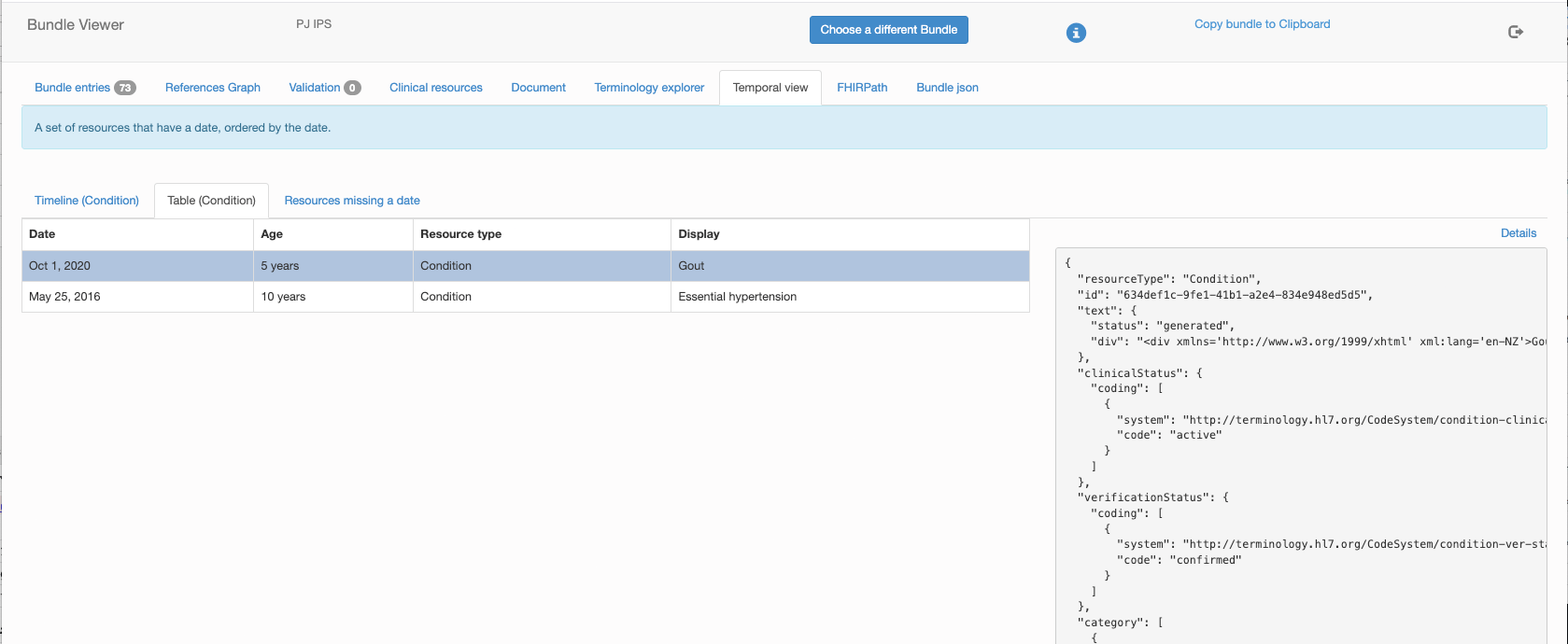
One question when creating a timeline is what element to use as the date as this differs between resources, and some resources have multiple dates. To do this we created a configuration loosely based on the W5 pattern that lists the element/s to use (not all resource instances will populate the same date so this can vary on the timeline.)
The actual configuration for each resource type is displayed below the list of resources as shown here

So in the example above (Immunization), the date field is occurrence[x] if that exists or recorded if not. If neither are present then the resource will not be included in the timeline or the table – and will appear in the ‘Resources missing a date’ tab.
In the Summary field is the vaccine code.display (from the CodeableConcept.coding) or the vaccine text if not.
 About David Hay
Recent Comments